
Subscribing for the First Time
- Go to the Dashboard (home screen of the Configurator app).
- Use the Monthly / Annual toggle to select your preferred billing interval.
- Click Subscribe on the plan you want.
- You will be redirected to Shopify's billing approval page.
- Click Approve. You are returned to the Dashboard with your plan active.
Upgrading Your Plan
- On the Dashboard, click Upgrade on the higher-tier plan card.
- Approve the charge on Shopify's billing page.
- Your new plan takes effect immediately.
Downgrading Your Plan
- On the Dashboard, click Downgrade on a lower-tier plan card.
- A confirmation modal will explain what features you will lose.
- If your current number of active products exceeds the new plan's limit, all active products will be archived. After the change to the new plan you will need to visit the Configurator Products tab, choose Archived:
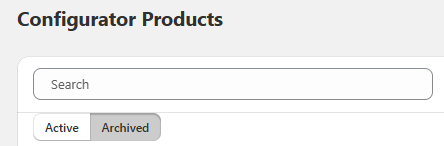
and then click the restore icon for the configurations you wish to restore.
 - Approve the change on Shopify's billing page.
Note: Downgrading does not delete any configurations. Archived products retain all their data and can be restored later up to your current plan limit.