
Prefer to watch instead of read? See the video walkthrough.
Overview
After installing NetSource Configurator for the first time, complete the following steps to ensure the app is fully set up for your store.
Checklist
-
Choose a subscription plan: On the Dashboard, select a plan that fits your store. A 14-day free trial is included.
-
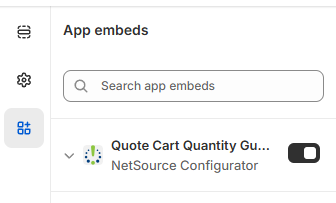
Enable the theme extension: In Shopify Admin, go to Online Store > Themes > Edit Theme >App Embeds and toggle on NetSource Configurator. This makes the storefront widget available on your product pages:
Setup Guide
Setup Status
At the top of the page there's a status card with two buttons:
- Mark setup complete — Click this once you've finished all the steps below. This tells the app that your store is fully set up.
- Reset — If you need to redo your setup (for example, after switching themes), click this to clear the completed status and start over.
Reinstall notice: If you uninstalled and reinstalled the app, Shopify automatically removes all theme blocks and app embeds. You'll see a warning banner at the top. Your product configurations and settings are safe — you just need to redo the theme steps below. The cart pricing function is re-activated automatically.
Step 1: Add the Product Configurator Block to Your Product Template
What this does: Places the configurator widget on your product pages so the "Customize" button appears for customers.
How to do it:
- Click Open Product Template in Theme Editor. This opens the Shopify theme editor directly on your product page template.
- In the left sidebar of the theme editor, click Add block → Apps → Product Configurator.
- Drag the block to where you want it to appear on the page — usually below the product description or near the Add to Cart button.
- Click Save in the theme editor.
When you're done, click Re-check to confirm the app detected the block.
Step 2: Enable the Cart Quantity Guard
What this does: Enforces minimum and maximum purchase quantities on the cart page for customers using finalized quotes.
How to do it:
- Click Open App Embeds in Theme Editor. This opens the App Embeds section of the theme editor.
- Find Quote Cart Quantity Guard and toggle it on.
- Click Save in the theme editor.
When you're done, click Re-check to confirm it's active.
Step 3: Confirm Customer Accounts Mode
What this does: Makes sure your store is using Shopify's New customer accounts system, which the Configurator app requires. The legacy "Classic" accounts format is not supported.
The badge next to this step will show one of three states:
- New accounts (green) — You're all set, nothing to do.
- Classic (legacy) (yellow) — You need to switch to New customer accounts.
- Disabled (yellow) — Customer accounts are turned off.
If the badge is not green, click Open Customer Account Settings and switch your store to New customer accounts.
Note: Switching to New customer accounts changes how your customers log in. It does not delete their order history or saved information.
Step 4: Add the Saved Quotes Blocks to the Customer Account Editor
What this does: Adds a "Saved Quotes" section to your customers' account pages so they can view, edit, and submit their saved configurations.
This step has two parts: adding a profile block and adding a navigation link.
How to open the customer account editor:
- Click Open Customer Accounts Settings.
- In the Configurations section, click Customize.
- You'll land on the Checkout page. Use the dropdown in the top-right corner (next to "Live") to switch to the Profile page.
Part A — Add the profile block:
- Click the sections icon in the top-left corner (it looks like stacked lines).
- Under Main, check whether Saved Quotes Link is already listed.
- If it's not there, click Add block and select Saved Quotes Link.
Part B — Add the header navigation link:
- In the same sections panel, click Header to expand it.
- Click Add menu item (or Add link).
- Select the Saved Quotes full-page extension as the link destination.
- Type Saved Quotes as the label.
- Click Save in the top-right corner.
Why this matters: The header navigation link is what makes "Saved Quotes" appear alongside "Orders" and "Profile" at the top of the customer account page. Without it, customers can only reach their quotes through the profile page — they won't see it in the main navigation.
When you're done, click Re-check to confirm the block was detected.
Step 5: Verify the Storefront
What this does: Lets you confirm that everything is working by looking at your store the way a customer would.
Click Open /account to open your store's customer account page in a new tab. Log in as a customer (or use a test account) and check that:
- "Saved Quotes" appears in the navigation bar next to "Orders" and "Profile"
- Clicking it opens the Saved Quotes page correctly
If anything looks wrong, go back to Step 4 and double-check that both the profile block and the header navigation link were added and saved.
Create your first configurable product: First, you will need to identify a product in your Shopify products listing to be a Configurator product. Once identified, in edit mode, scroll down to the bottom of product edit page. If this is the first time setting a product to be a Configurator product, then you'll most likely see this:

If so, click + Block then click NetSource Configurator that appears immediately above. Now you can click the Yes option. This setting is saved immediately.
Tip: Click the Pin in the upper right corner and Shopify will always show this without going through the previous steps:
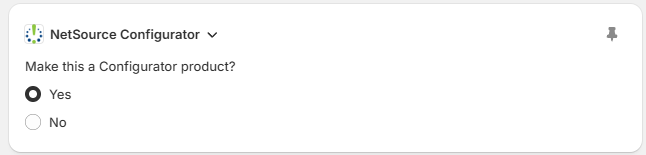
If you are creating a new Shopify product to be a Configurable product, once you save it, the NetSource Configurator block will appear at the bottom of the page. Select Yes to make this product available to Configurator. Go to the Configurator Products tab in the app menu and click Create configuration.
Tip: We recommend that you set the Status to Draft so while you're creating your Configurator product it does not appear in any sales channels. Once you're satisfied with the configuration, set it to Active.
You will find detailed information on how to create a configuration in this article:
How to create a configurable product 
Review Configurator Settings: Go to Settings to customize button labels, display options, and inventory behaviour to match your store.
Complete Onboarding (if using Saved Quotes): If you are on a Premium or Unlimited plan, follow the steps in Onboarding to place customer account blocks so customers can view their saved quotes when logged in.
Tip: You do not need to complete all steps on day one. Your 14-day trial gives you time to explore the app before committing to a plan.
Next: Understanding the Dashboard