
Reordering Categories
The order of categories in the builder determines the order customers see them on the storefront. You can drag a category group to changed it's order, our you can change it's number:
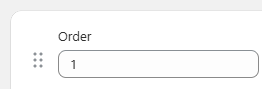
- In the configurator builder, locate the drag handle on the left side of a category card.
- Click and drag the card to the desired position.
- Click Save to preserve the new order.
Note: If you wish to reorder a high number of category groups then use the Collapse All Groups link at the top of the page. This will minimize all of the category groups and make it easier:

Removing a Category
- Click the Remove link on the category card you want to remove:

- Confirm when prompted.

- Click Save.
Note: Removing a category from a configuration does not delete the underlying Shopify collection or any of its products. Only the category's link to this configuration is removed.
Next: How to Archive and Restore Products